DNDJ article on constructing a BizTalk Server/JMS adapter using JNBridgePro

We’ve written an article on how to construct a BizTalk adapter for JMS using JNBridgePro, that’s just been published in the .NET Developers’ Journal (volume 4, issue 3).  You can see it here.

Update: The article’s now out in hardcopy. See p.10 of DNDJ (volume 4, issue 3).

Embedding Java GUI components in .NET GUIs

Update:  We’ve released JNBridgePro v3.1, which incorporates the support libraries described below, which makes embedding Java GUI components in .NET GUIs even simpler.   See the announcement here.  The 3.1 installer includes a version of this example targeted toward 3.1.

In my last post, I showed how to embed a .NET GUI component inside a Java GUI. In this post, I’ll show the inverse: how to embed a Java GUI component inside a .NET GUI.  We probably see more requests for this direction than for the other, since more customers have Java GUI components that they want to use in new .NET programming than the other way around.  As in the last post, after showing how to embed the Java component in the .NET GUI, we’ll show how you can have the .NET GUI react to events in the Java component.

Start by downloading the sample code. In addition to the sample code, there are a couple of dlls and jar files containing helper classes that assist in the interop. These helper classes will eventually be included in the JNBridgePro runtime components themselves, but in the meantime, you can use these assemblies when creating your own GUI interop projects.

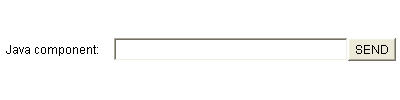
We’ll start with a Java component in JavaComponent.java, that looks like this:


Java GUI component

Note that the control has several parts, including a label, a text box, and a button. The text box and its contents can be accessed through a field, and there is a method to register an ActionListener that will be called when the button is pressed.  The control has been compiled, and is called jInN.JavaComponent.

The proxies have already been generated and are in the file javaComponentProxies.dll. If you want, you can re-create the proxy dll by launching the proxy generation tool and creating a new .NET-to-Java project. Add jInN.JavaComponent to the classpath, then load jInN.JavaComponent plus supporting classes, and generate proxies for all the classes.

Next, we examine the .NET GUI-based application in Form1.cs. We’ve included a WinForms Panel that will hold the Java component. Note the simple code sequence inside the constructor:

// create the Java GUI component
JavaComponent jcp = new JavaComponent();
// register any callbacks
jcp.addActionListener(new DotNetActionList(jcp.javaTextBox, dotNetTextBox));
// wrap it so it can be embedded
jc = new JavaControl(jcp);
// embed it
javaHolder.Controls.Add(jc);

First, create the Java control by instantiating its proxy. Next, register callbacks; we have a .NET-side implementation of ActionListener that, when fired, will get the contents of the Java textbox and copy it to the .NET textbox. Once the Java control has been set up, we wrap it in a special wrapper class DotNet.JavaControl.  JavaControl is derived from System.Windows.Forms.Control, and contains the linkages necessary to embedding the Java component in the .NET control. We then add it to the enclosing Panel.

That’s all that’s needed to embed a Java component inside a .NET GUI.

Open the .NET solution provided and build it.  You may need to adjust the references to jnbshare.dll and jnbsharedmem.dll. In our example, you’ll want to use the .NET 2.0-targeted version of these components. Also make sure that the various file paths in the app.config file are correct for your computer.

Finally, find a copy of jawt.dll in the jrebin folder of your Java development kit or the bin folder of your Java runtime environment and copy it to the folder into which your built project has been placed. Also copy the file jnbtools.dll into that folder.

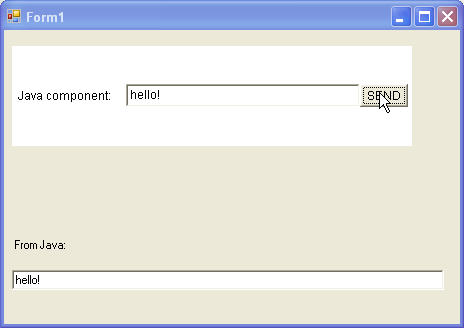
Running the .NET application, we see this:


Java component embedded in .NET GUI

And that’s all there is to embedding a Java componet in a .NET Window. When we fill the Java text box and click on the button, the event fires and the .NET-side callback is executed, copying the text into the .NET text box.  You can make more complex interactions, and even have bidirectional communications between the .NET and Java GUI elements.

The key to the interop is the JavaControl wrapper class. Once you instantiate the Java component’s proxy and wrap it, you can plug it in wherever a WinForms component would go.

As I mentioned before, to do any embedding now, use the helper assemblies and jar files; in the future, they will be incorporated into the JNBridgePro runtime components.

We’d love to hear from you about this.  Let us know if you try it, and if you see a use for it in your upcoming projects.

Embedding .NET GUI components in Java GUIs

Update:  We’ve released JNBridgePro v3.1, which incorporates the support libraries described below, which makes embedding .NET GUI components in Java GUIs even simpler.   See the announcement here.  The 3.1 installer includes a version of this example targeted toward 3.1.

One feature request we frequently get is for a way to embed .NET GUI components in Java GUIs, or, conversely, to embed Java GUI components in .NET GUIs.  In this post, we’ll show you how to put a .NET component inside a Java GUI, and to have the Java GUI react to events in the .NET component.

Start by downloading the sample code. Unpack the zip file. In addition to the sample code, there are a couple of dlls and jar files containing helper classes that assist in the interop. These helper classes will eventually be included in the JNBridgePro runtime components themselves, but in the meantime, you can use these assemblies when creating your own GUI interop projects.

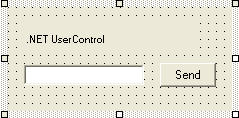
We’ll start with a .NET control in JNBControl.cs, that looks like this:


dotNetControl

Note that the control has several parts, including a label, a text box, and a button. The text box and its contents can be accessed through a field, and there is a method to register a delegate that will be called when the button is pressed.  The control has been compiled, is called JNBTest.JNBControl and is in the assembly JNBTest.dll.

The proxies have already been generated, and are in the file dotNetControlProxies.jar.  If you want, you can re-create the proxy jar file by launching the proxy generation tool and creating a new Java-to-.NET. Add JNBTest.dll to the assembly list, plus the assemblies System and System.Windows.Forms from the GAC (either the .NET 1.1 or 2.0 versions, depending on which version you’re using). Then, load JNBTest.JNBControl plus supporting classes, and generate proxies for all the classes.

Next, we examine the Java GUI-based application in javaTestMainClass.java. This is a simple AWT-based application. Note the simple code sequence in the middle of the main() method:

// create the .NET control
JNBControl c = new JNBControl();
// register any callbacks
c.registerClickDelegate(new ClickEventHandler());
// wrap it so it can be embedded
DotNetControl dnc = new DotNetControl(c);
// size it
dnc.setSize(224, 104);
// embed it
f.add(dnc, dncConstraints);

First, create the .NET control by instantiating its proxy. Next, register callbacks; we have a Java-side event handler that, when fired, will get the contents of the .NET textbox and copy it to the Java text box. Once the .NET control has been set up, we wrap it in a special wrapper class com.jnbridge.embedding.DotNetControl. DotNetControl is derived from java.awt.Component (actually, java.awt.Canvas, which is a subclass of Component), and contains the linkages necessary to allow embedding of the .NET control in the Java component. We then size it like any other AWT component, and add it to the enclosing frame using graphical constraints that have already been prepared.

This is all that’s needed to embed a .NET component inside a Java GUI.

When compiling, make sure the build classpath contains the proxy jar file and the helper jar file jnbtools.jar, as well as the usual jnbcore.jar and bcel-5.1-jnbridge.jar.

Finally, let’s run the program. Note that GUI component embedding will only work with shared memory communications.  Make sure that jnbshare.dll, jnbsharedmem.dll, and jnbjavaentry2.dll are in the GAC. Also, make sure that jnbtools.dll and jnbtools.jar are together in the same file. Finally, examine jnbcore_sharedmem.properties. Note that we are loading JNBTest.dll and JNBTools2.dll, as well as System.Windows.Forms. Make sure that all paths in the file are correct for your machine.

To run the application, make sure that the classpath contains all the files in the build classpath. You can use runJava.bat, but first make sure that all the paths are correct for your machine.

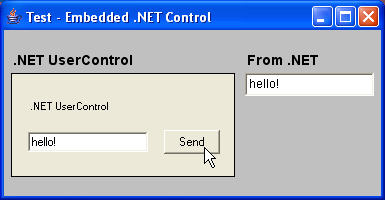
Running the application, we see this:


Embedded .NET GUI component in a Java app

Yes, that’s really a .NET control inside a Java AWT window!  When we fill in the .NET text box and click on the button, the event fires and the Java-side callback is executed, copying the text into the Java text box. You can make more complex interactions, and even have bidirectional communications between the .NET and Java GUI elements.

The key to the interop is the DotNetControl wrapper class.  Once you instantiate the .NET control’s proxy and wrap it, you can plug it in wherever an AWT component would go.

As I mentioned before, to do any embedding now, use the helper assemblies and jar files; in the future, they will be incorporated into the JNBridgePro runtime components.

We’d love to get your feedback on this. How many of you see a use for it?

In an upcoming article, we’ll go in the other direction and show how to embed Java GUI components in WinForms.

Update: that new article, on embedding Java GUI components in .NET GUIs, has been posted.

Java/Excel (and other Office) Interoperability

Update January 2018
We’re curious: this blog post has consistently been a top performer for many years now, and we’d like to know why.

  • This field is for validation purposes and should be left unchanged.

I’ve been working with a customer on a project to show how Java code can access Microsoft Excel files through the .NET interfaces provided in Visual Studio Tools for Office (VSTO). Although the example uses Excel, the principles here will work with the VSTO interfaces for any other Office application, including Word, Outlook, and PowerPoint.

The customer is using .NET Framework 1.1, so we concentrated on VSTO 2003 and the 1.x-targeted version of JNBridgePro 3.0, but the same ideas will work with .NET 2.0 and VSTO 2005.

We started with the following C# program:

using System;
using Excel = Microsoft.Office.Interop.Excel;
namespace ExcelProject
{
   public class ExcelInterop
   {
      static void sheetChangeHandler(object ah, Excel.Range target)
      {
         Console.WriteLine(“the worksheet changed!”);
         Console.WriteLine(“target = [" + target.Row + ", " +
         target.Column + "]“);
      }

      public static void Main(string[] args)
      {
         Excel.WorkbookEvents_SheetChangeEventHandler
            sheetChangeEvent;
         Excel.Application theApp = new Excel.Application();
         Excel.Workbooks wbs = theApp.Workbooks;
         Excel.Workbook wb =
            wbs.Open(@”C:\Data\JNBridge\ExcelProject\Book1.xls”,
            Type.Missing, Type.Missing, Type.Missing, Type.Missing,
            Type.Missing, Type.Missing, Type.Missing,
            Type.Missing, Type.Missing, Type.Missing, Type.Missing,
            Type.Missing, Type.Missing, Type.Missing);
         sheetChangeEvent =
            new Excel.WorkbookEvents_SheetChangeEventHandler(
               sheetChangeHandler);
         wb.SheetChange += sheetChangeEvent;
         Excel.Worksheet ws = (Excel.Worksheet)wb.Sheets[1];
         ((Excel.Range)ws.Cells[1,1]).Value2 = “hello world”;
         wb.Save();
         wb.Close(false, Type.Missing, Type.Missing);
         theApp.Quit();
      }
   }
}

The program takes an existing Excel file Book1.xls, opens it, assigns the string “hello world” to cell A1, then saves it away and quits. We wanted to write a Java program that would do the same thing.

As a first pass, we’ll start by generating proxies for all the VSTO classes used above: Application, Workbooks, Workbook, Worksheet, Range, WorkbookEvents_SheetChange, and Type (plus supporting classes). However, if you just do a straightforward one-to-one translation from C# to Java, you’ll run into a couple of issues.

The first thing you’ll discover is that Application is an interface and you can’t instantiate it:

Application theApp = new Application();

So how come we can instantiate Application in C#? It turns out that the Application interface is annotated with a CoClassAttribute that points to Excel.ApplicationClass. The C# compiler has hooks that understand CoClassAttribute, and the compiled code actually instantiates ApplicationClass, which implements the Application interface This metadata isn’t proxied to the Java side, and Java wouldn’t know what to do with it anyway. The solution is to proxy Excel.ApplicationClass and instantiate that in Java:

Application theApp = new ApplicationClass();

The Excel objects that are returned from the API are actually instances of System.__ComObject, which is a special .NET wrapper for the underlying COM objects returned by the various Office APIs. Now, System.__ComObjects don’t actually implement the interfaces they stand in for (try applying the reflection method Type.GetInterfaces() to a System.__ComObject to verify this), although if a System.__ComObject o is supposed to represent an object with an interface I, the test “o is I” will succeed. In any case, the built-in .NET-COM interop seems to take care of this, but the metadata needed to make this happen isn’t proxied across to the Java side and this leads to ClassCastExceptions when the proxied System.__ComObjects are assigned to variables of interface type.

To address this issue, we need to make sure that all interop with COM objects happens on the .NET side. To do this, we create wrapper classes for each of the Excel classes we use. The wrappers are what gets proxied, and the underlying wrapper objects are simply pass-throughs to the COM objects — since the calls to the COM objects are done on the .NET side, the interop automatically happens.

We create wrapper classes for each interface that we used. As an example of how this can be done, consider the wrapper that we write for the Excel.Workbook interface:

using Excel = Microsoft.Office.Interop.Excel;
namespace com.jnbridge.office.interop.excel
{
   public class WorkbookImpl: Excel.Workbook
   {
      private Excel.Workbook wb;      

      public WorkbookImpl(Excel.Workbook theWb)
      {
         this.wb = theWb;
      }

      public void Dummy16()
      {
         wb.Dummy16();
      }

      public bool IsInplace
      {
         get
         {
            return wb.IsInplace;
         }
      }

      public Microsoft.Office.Interop.Excel.Sheets Sheets
      {
         get
         {
            return new SheetsImpl(wb.Sheets);
         }
      }
      // etc
   }
}

Note that the wrapper methods are passthroughs. Also look at the last property, Sheets: it returns an object that implements the Sheets interface. Since that object will itself be a System.__ComObject, we need to wrap it with the wrapper for Sheets (SheetsImpl) that we’ve written before it can be returned. In general, we need to do this with all members that return an object of an Office API type, since they will all be System.__ComObjects. Objects of other types, including primitives and strings, don’t have to be wrapped.

Some of the Excel API methods take arguments of Type.Missing to indicate that the value isn’t being supplied. Unfortunately, the .NET reflection API’s dynamic dispatch mechanism gets confused when it sees Type.Missing, since it’s used as a special indicator in vararg calls. Since JNBridgePro uses this reflection mechanism, it gets confused, too. To address this problem, we have the Java side pass null for those arguments that aren’t used, and the wrapper will translate them to Type.Missing before calling the COM object, as in this wrapper call to WorkbookImpl.Close():

public void Close(object SaveChanges, object Filename, object RouteWorkbook)
{
   wb.Close(SaveChanges,
      Filename != null ? Filename : Type.Missing,
      RouteWorkbook != null ? RouteWorkbook : Type.Missing);
}

Finally, we need to address Java-side event handlers. When an event is fired, if an Excel object is being passed to the event handler, what really gets passed is a COM object — so we need to make sure these COM object arguments are wrapped before they get to the Java side. The way to do this is to wrap the event handler so that it intervenes in the event call and wraps the COM objects before passing them to the Java side. Here’s how we did SheetChange Event in the WorkbookImpl class:

// this is a small nested class inside WorkbookImpl
// use this wrapper so that the call to the ComObject is done on the
// .NET side, and the Java side always sees the WorkbookImpl and
// RangeImpl objects
private class SheetChangeEventHandlerWrapper
{
   Excel.WorkbookEvents_SheetChangeEventHandler sceh;

   public SheetChangeEventHandlerWrapper(
      Excel.WorkbookEvents_SheetChangeEventHandler theSceh)
   {
      this.sceh = theSceh;   // this is the Java side handler
   }

   public void wrapped_sceh(object sender, Excel.Range target)
   {
      // call the Java side handler with the RangeImpl object
      sceh(new WorksheetImpl((Excel.Worksheet) sender),
      new RangeImpl(target));
   }
}

public event Microsoft.Office.Interop.Excel.WorkbookEvents_SheetChangeEventHandlerSheetChange
{
   add
   {
      // create a new SheetChangeEventHandler
      // that will call this one
      // value is the Java-side handler
      SheetChangeEventHandlerWrapper mySceh
         = new SheetChangeEventHandlerWrapper(value);
      // add the new one to SheetChangeEventHandler
      // – the handler we register is the wrapper handler
      wb.SheetChange +=
         new Excel.WorkbookEvents_SheetChangeEventHandler(
            mySceh.wrapped_sceh);
   }
   remove
   {
      // create a new SheetChangeEventHandler
      // that will call this one
      // value is the Java-side handler
      SheetChangeEventHandlerWrapper mySceh
         = new SheetChangeEventHandlerWrapper(value);
      // remove the new one to SheetChangeEventHandler
      // – the handler we register is the wrapper handler
      wb.SheetChange -=
         new Excel.WorkbookEvents_SheetChangeEventHandler(
            mySceh.wrapped_sceh);
   }
}

That should give you enough information to implement your own wrapper classes. If you only implement wrapper classes for the VSTO classes you need, it should be pretty straightforward. If you want to implement wrappers for the entire VSTO API, you might want to contact us. 🙂

Now generate the proxy jar file as follows:

Start with a new Java-to-.NET project. Add the VSTO Excel assembly (from the GAC) and the new wrapper DLL to the assembly list. Load the following classes (using “Add classes from assembly list…”) from the primary interop assemblies (plus all supporting classes):

  • Microsoft.Office.Interop.Excel.Application
  • Microsoft.Office.Interop.Excel.Workbooks
  • Microsoft.Office.Interop.Excel.Workbook
  • Microsoft.Office.Interop.Excel.Sheets
  • Microsoft.Office.Interop.Excel.Worksheet
  • Microsoft.Office.Interop.Excel.Range

Load all the classes (using “Add classes from assembly file…”) from the wrapper DLL.

Generate proxies for all the classes that you’ve loaded.

Make sure you’ve got the following on your machine:

  • NET Framework 1.1
  • VSTO 2003
  • JNBridgePro 3.0
  • place the 1.x-targeted versions of jnbshare.dll, jnbsharedmem.dll, and jnbjavaentry2.dll in the GAC.

Place the following code in a file MainClass.java so that the paths to jnbjavaentry.dll and ExcelWrappers.dll are correct on your machine, and compile it. Make sure that jnbcore.jar, bcel-5.1-jnbridge.jar, and the jar file with the proxies for the Excel VSTO interfaces and the wrapper classes are in the compilation classpath. Note that we’re configuring JNBridgePro programmatically so you won’t need to worry about a configuration file. It’s set up for shared memory.

Note the long strings below have been wrapped. Make sure they’re correct when you try to compile this code.

import Microsoft.Office.Interop.Excel.*;
import System.Type;
import System.BoxedBoolean;
import System.DotNetString;
import System.BoxedInt;
import System.Object;
import com.jnbridge.jnbcore.DotNetSide;
import java.util.Properties;
import com.jnbridge.office.interop.excel.*;
public class MainClass
{
   public static class SheetChangedEventHandler
      implements WorkbookEvents_SheetChangeEventHandler
   {
      public void Invoke(Object sender, Range target)
      {
         System.out.println(“the worksheet changed!”);
         System.out.println(“target = [" + target.Get_Row() + ", " +
            target.Get_Column() + "]“);
      }
   }

   public static void main(String[] args) 
   {
      // set up the properties
      Properties props = new Properties();
      props.put(“dotNetSide.serverType”, “sharedmem”);
      props.put(“dotNetSide.assemblyList.1″,
         “C:\\Data\\JNBridge\\ExcelWrappers\\bin\\Debug\\ExcelWrappers.dll”);
      props.put(“dotNetSide.assemblyList.2″,
         “Microsoft.Office.Interop.Excel,
         Version=11.0.0.0,Culture=neutral, 
         PublicKeyToken=71e9bce111e9429c”);
      props.put(“dotNetSide.assemblyList.3″,
         “office, Version=11.0.0.0, Culture=neutral,
         PublicKeyToken=71e9bce111e9429c”);
      props.put(“dotNetSide.assemblyList.4″,
         “Microsoft.Vbe.Interop.Forms, Version=11.0.0.0, Culture=neutral,
         PublicKeyToken=71e9bce111e9429c”);
      props.put(“dotNetSide.assemblyList.5″,
         “System, Version=1.0.5000.0, Culture=neutral,  
         PublicKeyToken=b77a5c561934e089″);
      props.put(“dotNetSide.assemblyList.6″,
         “System.Data, Version=1.0.5000.0, Culture=neutral,
         PublicKeyToken=b77a5c561934e089″);
      props.put(“dotNetSide.assemblyList.7″,
         “System.Windows.Forms, Version=1.0.5000.0, Culture=neutral,
         PublicKeyToken=b77a5c561934e089″);
      props.put(“dotNetSide.assemblyList.8″,
         “System.XML, Version=1.0.5000.0, Culture=neutral, 
         PublicKeyToken=b77a5c561934e089″);
      props.put(“dotNetSide.assemblyList.9″,
         “Microsoft.Vbe.Interop, Version=11.0.0.0, Culture=neutral, 
         PublicKeyToken=71e9bce111e9429c”);
      props.put(“dotNetSide.javaEntry”,
         “C:/Program Files/JNBridge/JNBridgePro v3.0/1.x-targeted/JNBJavaEntry.dll”);
      DotNetSide.init(props);
      Application theApp =
         new com.jnbridge.office.interop.excel.ApplicationClass(
         new Microsoft.Office.Interop.Excel.ApplicationClass());
      Workbooks wbs = theApp.Get_Workbooks();
      Microsoft.Office.Interop.Excel.Workbook wb =
         wbs.Open(“C:\\Data\\JNBridge\\ExcelProject2\\Book1.xls”,
         null, null, null, null, null, null, null,
         null, null, null, null, null, null, null);
         // use null instead of Type.Missing
      WorkbookEvents_SheetChangeEventHandler sceh =
         new SheetChangedEventHandler();
      wb.add_SheetChange(sceh);
      Microsoft.Office.Interop.Excel.Sheets wss
         = (Microsoft.Office.Interop.Excel.Sheets)wb.Get_Sheets();
      Microsoft.Office.Interop.Excel.Worksheet ws =
         (Worksheet)wss.Get_Item(new BoxedInt(1));
      Range r = ws.Get_Cells();
         Range r2 = (Range)r.Get_Item(new BoxedInt(1), new BoxedInt(1));
      r2.Set_Value2(new DotNetString(“hello world”));
      wb.Save();
      wb.Close(new BoxedBoolean(false), null, null);
      theApp.Quit();
   }
}

Note how we only explicitly refer a wrapper proxy once, when we’re wrapping the VSTO ApplicationClass. In all other cases, we continue to use the VSTO interfaces, but if we’ve constructed the wrapper classes correctly, wrappers will be returned for each call and we address them through the interfaces, so they’re invisible.

To run this application, just make sure that jnbcore.jar, bcel-5.1-jnbridge.jar, and the proxy jar file are in your classpath, and run

java MainClass

If you’ve done this properly, the Excel spreadsheet will now have “hello world” in cell A1.

Once you get past the need for wrappers, setting up this interop is pretty simple, and it’ll work for all the Office APIs, not just Excel.

A question for all of you out there.  Would you be interested in having JNBridge supply an assembly with wrappers for the Office APIs, or are you happy to do it yourselves?  Let me know.

Serialization of proxies

Occasionally, customers ask how to serialize proxies, particularly .NET-side proxies, as part of the functionality of the application they’re developing. They’ve noticed that the proxies are not [Serializable]. We’ve spent a fair amount of time thinking about this, and there are some interesting issues in proxy serialization.

First, let’s consider reference proxies. A reference proxy contains a “remote reference” to the underlying Java object. The problem with making a reference proxy serializable is that, if the proxy could be serialized somehow, just the remote reference would be stored away. Now, assume that after the proxy was serialized, the Java side was shut down. Later, when the Java side is started up again, there’s no guarantee that the underlying Java object will be created; if the proxy is deserialized, there there’s no guarantee that the remote reference will point to anything useful, or even anything at all.

Value proxies, on the other hand, are snapshots of the underlying Java object, and are more self-contained than reference proxies. So, in theory, it should be possible to serialize a value proxy. Yes, but some of the members of the value proxy can themselves be reference proxies, and can have the same serialization/deserialization problems we’ve just described. We could arbitrarily decide that only the non-reference members of a value proxy will be serialized, and not attempt to serialize the reference members, but it’s not always clear to the user/developer which members are reference and which are value. It can get complicated and lead to unexpected user errors, and we strive to keep things simple for the users and provide features that don’t encourage errors.

So what do you do if you really want to serialize the proxies? All is not lost. .NET provides a little-known but really cool feature called a serialization surrogate. It’s a way to specify serialization behavior for classes that weren’t designed to be serializable. Once you’ve created and registered a serialization surrogate for a given class, then that class is henceforth treated as serializable (as defined by the surrogate). There’s a great article on serialization surrogates here.

Accessing Java Messaging Service (JMS) from .NET

Updated December 2, 2015 for intervening technical changes.

Update October 2007: While you can still implement .NET/JMS integrations using the procedure described below, we now offer a packaged JMS adapter for .NET, so you don’t need to go to the trouble!

Numerous customers are using JNBridgePro to access JMS servers from .NET clients, and I get frequent requests from prospective customers asking how it’s done. So here’s an example of how to create a simple JMS sender and receiver in .NET.  This isn’t a tutorial on JMS; you can find good tutorials on Oracle’s Java site.

We’ve prepared this example using OpenJMS, a free open-source JMS server that can be downloaded from http://openjms.sourceforge.net/. (We’re using version 0.7.6.1, but there are later releases; the principles will be the same.) It can be adapted for any other JMS server, although the details may vary from server to server.

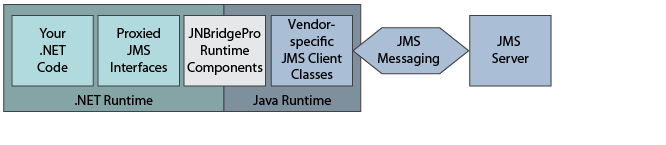
In this example, we’ve chosen an architecture that divides the JMS client into two parts: a .NET front end, and a thin Java back end. The .NET part can implement a GUI or offer a .NET-based API to other components, and the Java back end performs the actual communication with the JMS server using RMI or some other native Java protocol. The bridging between the .NET and Java portions of the client is done with JNBridgePro, using the shared-memory communications mechanism.

This architecture has a number of advantages. Most importantly, you don’t have to deploy anything to the server. Also, if your JMS server has clustering, load-balancing, or high-availability capabilities, and the JMS client classes in the client’s Java back end know how to use that clustering, your .NET JMS clients can now use this capability. The disadvantage of this architecture, of course, is that you need a JVM as well as a .NET CLR on each of your client machines.  In a future blog post, we’ll discuss the tradeoffs between architectures that deploy the Java side to the server and those that deploy the Java side to the client.

So the architecture of this example looks like this:

JMSand.NET_figure1

The first thing we’ll do is generate the proxies. Note that we’re generating proxies for classes in javax.jms.* and javax.naming.*, so we’ll need a JNBridgePro installation with a developer license, or an eval copy. Add the files jms-1.0.2a.jar and jndi-1.2.1.jar (both in the lib folder) to the proxy generator’s classpath: we’re going to be using proxies of the JMS interfaces and JNDI contexts; if you only generate proxies for standard API classes like these, the proxy assembly that you generate will work even if you later change your JMS server to another vendor’s. After adding these files to the classpath, load all the classes in jms-1.0.2a.jar, plus javax.naming.InitialContext, and generate proxies for all these classes, plus all supporting classes. This is important, since it ensures that all methods in the various proxies will be generated.

Now, create your JMS sender and receiver projects. We’re going to do this in C#, creating console applications, but you can use any .NET language and make the clients as elaborate as you like.

In each of the projects, make sure to reference the proxy DLL you just created, plus jnbshare.dll and jnbsharedmem.dll. In your JMS sender project, add the following code:

using System;
using System.Collections.Generic;
using System.Text;
using javax.jms;
using javax.naming;

namespace JMS_sender
{
   class Program
   {
      static void Main(string[] args)
      {
         Console.WriteLine("JMS sender");

         // set up
         java.util.Hashtable properties = new java.util.Hashtable();
         properties.put((java.lang.JavaString) ContextConstants.INITIAL_CONTEXT_FACTORY, (java.lang.JavaString) "org.exolab.jms.jndi.InitialContextFactory");
         properties.put((java.lang.JavaString)
         ContextConstants.PROVIDER_URL, (java.lang.JavaString)"rmi://localhost:1099/");
         Context context = new InitialContext(properties);

         // get the queue connection factory
         QueueConnectionFactory factory = (QueueConnectionFactory) context.lookup("JmsQueueConnectionFactory");

         // get the queue connection
         QueueConnection connection = factory.createQueueConnection();
         connection.start();

         QueueSession session = connection.createQueueSession(false, SessionConstants.AUTO_ACKNOWLEDGE);

         javax.jms.Queue senderQueue = (javax.jms.Queue)context.lookup("queue1");

         QueueSender sender = session.createSender(senderQueue);

         Console.Write("Enter message (empty line followed by CR will exit): ");
         string input = Console.ReadLine();
         while (input != string.Empty)
         {
            // process the line
            TextMessage message = session.createTextMessage(input);
            sender.send(message);

            // get another one
            Console.Write("Enter message (empty line followed by CR will exit): ");
            input = Console.ReadLine();
         }

         // shut down the connection
         sender.close();
         session.close();
         connection.stop();
         connection.close();
      }
   }
}

If you know JMS, the above will look very familiar. If you don’t, you’ll either need to check out a JMS tutorial, or take my word for it. 🙂 There are a couple of things you should note here. The initial context factory value is hardwired to the one used by OpenJMS; if you use a different JMS server, this value will be different. The provider URL assumes use of the RMI protocol, that the JMS server is on the same machine as the client, and that the OpenJMS default port is being used. On your setup, any or all of these could be different. We also assume use of a particular queue connection factory and a particular queue name; these work with OpenJMS by default, but with other servers you may need to change these values or actually configure values on the server.

Create the receiver similarly, as follows. Note that the same issues as described above with the sender code also apply to the receiver.

using System;
using System.Collections.Generic;
using System.Text;
using javax.jms;
using javax.naming;

namespace JMS_receiver
{
   class Program
   {
      static void Main(string[] args)
      {
         Console.WriteLine("JMS receiver");

         // set up
         java.util.Hashtable properties = new java.util.Hashtable();
         properties.put((java.lang.JavaString) ContextConstants.INITIAL_CONTEXT_FACTORY, (java.lang.JavaString) "org.exolab.jms.jndi.InitialContextFactory");
         properties.put((java.lang.JavaString) ContextConstants.PROVIDER_URL, (java.lang.JavaString)"rmi://localhost:1099/");
         Context context = new InitialContext(properties);

         // get the queue connection factory
         QueueConnectionFactory factory = (QueueConnectionFactory) context.lookup("JmsQueueConnectionFactory");

         // get the queue connection
         QueueConnection connection = factory.createQueueConnection();
         connection.start();

         QueueSession session = connection.createQueueSession(false, SessionConstants.AUTO_ACKNOWLEDGE);

         javax.jms.Queue receiverQueue = (javax.jms.Queue)context.lookup("queue1");
         QueueReceiver receiver = session.createReceiver(receiverQueue);

         // register the message listener
         TextListener messageListener = new TextListener();
         receiver.setMessageListener(messageListener);

         Console.WriteLine("Enter empty line followed by CR to exit:");
         Console.ReadLine();

         // shut down the connection
         receiver.close();
         session.close();
         connection.stop();
         connection.close();
      }
   }
}

We’re going to use asynchronous message passing, so we’re going to need to create a callback to handle the incoming messages. Note above where we create a new TextListener object (which implements the MessageListener interface) and register it with the QueueReceiver object. You need to add the definition of TextListener, given below:

using System;
using System.Collections.Generic;
using System.Text;
using com.jnbridge.jnbcore;
using javax.jms;

namespace JMS_receiver
{
   // record messages as they're received
   [Callback("javax.jms.MessageListener")]
   public class TextListener : MessageListener
   {
      public TextListener()
      {
      }

      public void onMessage(Message message)
      {
         TextMessage msg = null;

         try
         {
            if (message is TextMessage)
            {
               msg = (TextMessage)message;
               Console.WriteLine("Message: " + msg.getText());
            }
            else
            {
               Console.WriteLine("Message of wrong type: " + message.GetType().FullName);
            }
         }
         catch (JMSException e)
         {
            Console.WriteLine("JMSException in onMessage(): " + e.toString());
         }
         catch (java.lang.Throwable t)
         {
            Console.WriteLine("Exception in onMessage(): " + t.getMessage());
         }
      }
   }
} 

Note the [Callback] attribute. TextListener is a .NET object that’s being passed to the Java side, so it needs to be set up as a callback.

Finally, we need to configure the sender and receiver. In each project, add an application configuration file, and put the following into it:

<?xml version="1.0" encoding="utf-8" ?>
<configuration>
   <configSections>
      <sectionGroup name="jnbridge">
         <section name="dotNetToJavaConfig"
            type="System.Configuration.SingleTagSectionHandler, System, Version=4.0.0.0, Culture=neutral, PublicKeyToken=b77a5c561934e089"/>
         <section name="javaToDotNetConfig"
            type="System.Configuration.SingleTagSectionHandler, System, Version=4.0.0.0, Culture=neutral, PublicKeyToken=b77a5c561934e089"/>
         <section name="tcpNoDelay"
            type="System.Configuration.SingleTagSectionHandler, System, Version=4.0.0.0, Culture=neutral, PublicKeyToken=b77a5c561934e089"/>
         <section name="javaSideDeclarations"
            type="System.Configuration.NameValueSectionHandler, System, Version=4.0.0.0, Culture=neutral, PublicKeyToken=b77a5c561934e089"/>
      </sectionGroup>
   </configSections>
   <jnbridge>
      <dotNetToJavaConfig scheme="sharedmem"
         jvm32="C:\Program Files (x86)\Java\jre8\bin\client\jvm.dll"
         jvm64="C:\Program Files\Java\jre8\bin\server\jvm.dll"
         jnbcore="C:\Program Files (x86)\JNBridge\JNBridgePro v7.3\jnbcore\jnbcore.jar"
         bcel="C:Program Files (x86)\JNBridge\JNBridgePro v7.3\jnbcore\bcel-5.1-jnbridge.jar"
         classpath="C:\Data\openjms-0.7.6.1\lib\jndi-1.2.1.jar;C:\Data\openjms-0.7.6.1\lib\jms-1.0.2a.jar;C:\Data\openjms-0.7.6.1\lib\openjms-client-0.7.6.1.jar"/>
   </jnbridge>
</configuration>

You’ll need to make sure that the jvm32, jvm64, jnbcore, bcel, and classpath paths are correct for your machine. If you’re using a different JMS server, you’ll have a different set of jar files that will need to go into your classpath.

That’s it; you’re done.  Build the sender and receiver projects.

Next, start up OpenJMS. There’s a startup.bat file in the bin folder that you can launch. Once it’s started, launch the JMS sender and receiver. If you’ve configured everything properly, no exceptions will be thrown. Now, if you type a message into the sender’s console window, the receiver’s TextListener callback will fire, and the message will be displayed in the receiver’s console window.

That’s all there is to it. JMS can be much more powerful than this; you can pass objects instead of just strings, you can communicate synchronously or asynchrously, and you can subscribe to topics, among other features. All of this can be accessed from .NET in the same way that we’ve done it in our simple example.

If you made it this far, what did you think?  Was this post too long?  Too complicated?  Too boring?  Let me know.